Java Is Open Source Programming Language You Can Download From Java and Java Libraries From http://www.oracle.com.
We provide this code related to title for you to solve your developing problem easily. Libraries which is import in this program you can download from http://www.oracle.com.
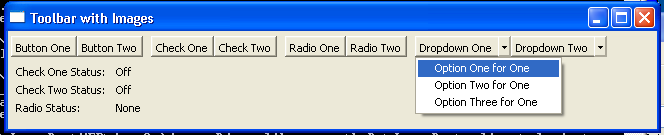
This class creates a complex toolbar
//Send questions, comments, bug reports, etc. to the authors:

//Rob Warner (rwarner@interspatial.com)
//Robert Harris (rbrt_harris@yahoo.com)

import java.io.*;

import org.eclipse.swt.SWT;
import org.eclipse.swt.events.*;
import org.eclipse.swt.graphics.Image;
import org.eclipse.swt.layout.*;
import org.eclipse.swt.widgets.*;

/**
 * This class creates a complex toolbar. It has two regular push buttons, two
 * "toggle" push buttons, two "radio" push buttons, and two dropdowns.
 */
public class ToolBarComplex {
  private static final String IMAGE_PATH = "images"
      + System.getProperty("file.separator");

  // Images to use on our tool items
  private Image circle, grayCircle;
  private Image square, graySquare;
  private Image star, grayStar;
  private Image triangle, grayTriangle;

  // Labels to display tool item statuses
  private Label checkOneStatus;
  private Label checkTwoStatus;
  private Label radioStatus;
  private Label dropdownOneStatus;
  private Label dropdownTwoStatus;

  /**
   * Runs the application
   */
  public void run() {
    Display display = new Display();
    Shell shell = new Shell(display);
    shell.setText("Toolbar with Images");
    createImages(shell);
    createContents(shell);
    shell.open();
    while (!shell.isDisposed()) {
      if (!display.readAndDispatch()) {
        display.sleep();
      }
    }
    disposeImages();
    display.dispose();
  }

  /**
   * Creates the images
   *
   * @param shell the parent shell
   */
  private void createImages(Shell shell) {
    try {
      circle = new Image(shell.getDisplay(), new FileInputStream(IMAGE_PATH
          + "circle.gif"));
      grayCircle = new Image(shell.getDisplay(), new FileInputStream(IMAGE_PATH
          + "grayCircle.gif"));
      square = new Image(shell.getDisplay(), new FileInputStream(IMAGE_PATH
          + "square.gif"));
      graySquare = new Image(shell.getDisplay(), new FileInputStream(IMAGE_PATH
          + "graySquare.gif"));
      star = new Image(shell.getDisplay(), new FileInputStream(IMAGE_PATH
          + "star.gif"));
      grayStar = new Image(shell.getDisplay(), new FileInputStream(IMAGE_PATH
          + "grayStar.gif"));
      triangle = new Image(shell.getDisplay(), new FileInputStream(IMAGE_PATH
          + "triangle.gif"));
      grayTriangle = new Image(shell.getDisplay(), new FileInputStream(IMAGE_PATH
          + "grayTriangle.gif"));
    } catch (IOException e) {
      // Images not found; handle gracefully
    }
  }

  /**
   * Disposes the images
   */
  private void disposeImages() {
    if (circle != null)
      circle.dispose();
    if (grayCircle != null)
      grayCircle.dispose();
    if (square != null)
      square.dispose();
    if (graySquare != null)
      graySquare.dispose();
    if (star != null)
      star.dispose();
    if (grayStar != null)
      grayStar.dispose();
    if (triangle != null)
      triangle.dispose();
    if (grayTriangle != null)
      grayTriangle.dispose();
  }

  /**
   * Creates the window contents
   *
   * @param shell the parent shell
   */
  private void createContents(Shell shell) {
    shell.setLayout(new RowLayout(SWT.VERTICAL));
    createToolbar(shell);

    // Create the labels to display the statuses of
    // the "check" and "radio" buttons
    Composite composite = new Composite(shell, SWT.NONE);
    composite.setLayout(new GridLayout(2, true));

    new Label(composite, SWT.RIGHT).setText("Check One Status:");
    checkOneStatus = new Label(composite, SWT.LEFT);
    checkOneStatus.setText("Off");

    new Label(composite, SWT.RIGHT).setText("Check Two Status:");
    checkTwoStatus = new Label(composite, SWT.LEFT);
    checkTwoStatus.setText("Off");

    new Label(composite, SWT.RIGHT).setText("Radio Status:");
    radioStatus = new Label(composite, SWT.LEFT);
    radioStatus.setText("None");
  }

  /**
   * Creates the toolbar
   *
   * @param shell the parent shell
   */
  private void createToolbar(final Shell shell) {
    ToolBar toolBar = new ToolBar(shell, SWT.HORIZONTAL);

    // Create push buttons
    ToolItem item = createToolItem(toolBar, SWT.PUSH, "Button One", circle, null,
        "This is button one");
    item.addSelectionListener(new SelectionAdapter() {
      public void widgetSelected(SelectionEvent event) {
        showMessage(shell, "Button One Pressed");
      }
    });

    item = createToolItem(toolBar, SWT.PUSH, "Button Two", square, null,
        "This is button two");
    item.addSelectionListener(new SelectionAdapter() {
      public void widgetSelected(SelectionEvent event) {
        showMessage(shell, "Button Two Pressed");
      }
    });

    ToolItem myItem = new ToolItem(toolBar, SWT.SEPARATOR);

    // Create "check" buttons
    item = createToolItem(toolBar, SWT.CHECK, "Check One", grayStar, star,
        "This is check one");
    item.addSelectionListener(new SelectionAdapter() {
      public void widgetSelected(SelectionEvent event) {
        ToolItem item = (ToolItem) event.widget;
        checkOneStatus.setText(item.getSelection() ? "On" : "Off");
      }
    });

    item = createToolItem(toolBar, SWT.CHECK, "Check Two", grayTriangle,
        triangle, "This is check two");
    item.addSelectionListener(new SelectionAdapter() {
      public void widgetSelected(SelectionEvent event) {
        ToolItem item = (ToolItem) event.widget;
        checkTwoStatus.setText(item.getSelection() ? "On" : "Off");
      }
    });

    new ToolItem(toolBar, SWT.SEPARATOR);

    // Create "radio" buttons
    item = createToolItem(toolBar, SWT.RADIO, "Radio One", grayCircle, circle,
        "This is radio one");
    item.addSelectionListener(new SelectionAdapter() {
      public void widgetSelected(SelectionEvent event) {
        radioStatus.setText("One");
      }
    });

    item = createToolItem(toolBar, SWT.RADIO, "Radio Two", graySquare, square,
        "This is radio two");
    item.addSelectionListener(new SelectionAdapter() {
      public void widgetSelected(SelectionEvent event) {
        radioStatus.setText("Two");
      }
    });

    new ToolItem(toolBar, SWT.SEPARATOR);

    // Create dropdowns
    item = createToolItem(toolBar, SWT.DROP_DOWN, "Dropdown One", star, null,
        "This is dropdown one");
    DropdownSelectionListener listenerOne = new DropdownSelectionListener(item);
    listenerOne.add("Option One for One");
    listenerOne.add("Option Two for One");
    listenerOne.add("Option Three for One");
    item.addSelectionListener(listenerOne);

    item = createToolItem(toolBar, SWT.DROP_DOWN, "Dropdown Two", triangle, null,
        "This is dropdown two");
    DropdownSelectionListener listenerTwo = new DropdownSelectionListener(item);
    listenerTwo.add("Option One for Two");
    listenerTwo.add("Option Two for Two");
    listenerTwo.add("Option Three for Two");
    item.addSelectionListener(listenerTwo);
  }

  /**
   * Helper function to create tool item
   *
   * @param parent the parent toolbar
   * @param type the type of tool item to create
   * @param text the text to display on the tool item
   * @param image the image to display on the tool item
   * @param hotImage the hot image to display on the tool item
   * @param toolTipText the tool tip text for the tool item
   * @return ToolItem
   */
  private ToolItem createToolItem(ToolBar parent, int type, String text,
      Image image, Image hotImage, String toolTipText) {
    ToolItem item = new ToolItem(parent, type);
    item.setText(text);
    item.setImage(image);
    item.setHotImage(hotImage);
    item.setToolTipText(toolTipText);
    return item;
  }

  /**
   * Helper method to display a message box. We use it to display a message when
   * a "push" button or "dropdown" button is pushed.
   *
   * @param shell the parent shell for the message box
   * @param message the message to display
   */
  public static void showMessage(Shell shell, String message) {
    MessageBox msgBox = new MessageBox(shell, SWT.OK);
    msgBox.setMessage(message);
    msgBox.open();
  }

  /**
   * The application entry point
   *
   * @param args the command line arguments
   */
  public static void main(String[] args) {
    new ToolBarComplex().run();
  }
}
/**
 * This class provides the "drop down" functionality for our dropdown tool items.
 */
class DropdownSelectionListener extends SelectionAdapter {
  private ToolItem dropdown;
  private Menu menu;

  /**
   * Constructs a DropdownSelectionListener
   *
   * @param dropdown the dropdown this listener belongs to
   */
  public DropdownSelectionListener(ToolItem dropdown) {
    this.dropdown = dropdown;
    menu = new Menu(dropdown.getParent().getShell());
  }

  /**
   * Adds an item to the dropdown list
   *
   * @param item the item to add
   */
  public void add(String item) {
    MenuItem menuItem = new MenuItem(menu, SWT.NONE);
    menuItem.setText(item);
    menuItem.addSelectionListener(new SelectionAdapter() {
      public void widgetSelected(SelectionEvent event) {
        MenuItem selected = (MenuItem) event.widget;
        dropdown.setText(selected.getText());
      }
    });
  }

  /**
   * Called when either the button itself or the dropdown arrow is clicked
   *
   * @param event the event that trigged this call
   */
  public void widgetSelected(SelectionEvent event) {
    // If they clicked the arrow, we show the list
    if (event.detail == SWT.ARROW) {
      // Determine where to put the dropdown list
      ToolItem item = (ToolItem) event.widget;
      Rectangle rect = item.getBounds();
      Point pt = item.getParent().toDisplay(new Point(rect.x, rect.y));
      menu.setLocation(pt.x, pt.y + rect.height);
      menu.setVisible(true);
    } else {
      // They pushed the button; take appropriate action
      ToolBarComplex.showMessage(dropdown.getParent().getShell(), dropdown
          .getText()
          + " Pressed");
    }
  }
}