Source Code : Displaying a Button with Varying Icons
Java Is Open Source Programming Language You Can Download From Java and Java Libraries From http://www.oracle.com.
Click Here to download
We provide this code related to title for you to solve your developing problem easily. Libraries which is import in this program you can download from http://www.oracle.com.
Click Here or search from google with Libraries Name you get jar file related it
Displaying a Button with Varying Icons
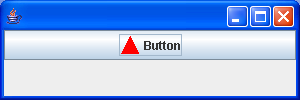
import java.awt.BorderLayout;
import java.awt.Color;
import java.awt.Component;
import java.awt.Container;
import java.awt.Graphics;
import java.awt.Polygon;

import javax.swing.Icon;
import javax.swing.JButton;
import javax.swing.JFrame;

public class ChangingButtonIconTest {
  static class TriangleIcon implements Icon {
    String name;

    static class State {
      public static final int NORMAL = 0;

      public static final int PRESSED = 1;

      public static final int ROLLOVER = 2;

      private State() {
      }
    }

    int state;

    Color color;

    public TriangleIcon(Color c, int state) {
      color = c;
      this.state = state;
    }

    public int getIconWidth() {
      return 20;
    }

    public int getIconHeight() {
      return 20;
    }

    public void paintIcon(Component c, Graphics g, int x, int y) {
      g.setColor(color);
      Polygon p = new Polygon();
      if (state == State.NORMAL) {
        p.addPoint(x + (getIconWidth() / 2), y);
        p.addPoint(x, y + getIconHeight() - 1);
        p.addPoint(x + getIconWidth() - 1, y + getIconHeight() - 1);
      } else if (state == State.PRESSED) {

        p.addPoint(x, y);
        p.addPoint(x + getIconWidth() - 1, y);
        p.addPoint(x + (getIconWidth() / 2), y + getIconHeight() - 1);
      } else {
        p.addPoint(x, y);
        p.addPoint(x, y + getIconHeight() - 1);
        p.addPoint(x + getIconWidth() - 1, y + (getIconHeight() / 2));
      }
      g.fillPolygon(p);
    }
  }

  public static void main(String args[]) {
    JFrame frame = new JFrame();
    Container contentPane = frame.getContentPane();
    Icon normalIcon = new TriangleIcon(Color.red, TriangleIcon.State.NORMAL);
    Icon pressedIcon = new TriangleIcon(Color.red,
        TriangleIcon.State.PRESSED);
    Icon rolloverIcon = new TriangleIcon(Color.red,
        TriangleIcon.State.ROLLOVER);
    JButton b = new JButton("Button", normalIcon);
    b.setPressedIcon(pressedIcon);
    b.setRolloverIcon(rolloverIcon);
    b.setRolloverEnabled(true);
    contentPane.add(b, BorderLayout.NORTH);
    frame.setSize(300, 100);
    frame.show();
  }
}
Thank with us